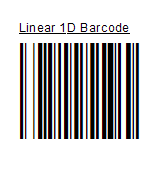
1.Go to the folder where u2lcom.dll is located and copy CRUFLMW6.dll there, and this folder varies depending on your version of Crystal Reports. If you are running a 64-bit version of Windows OS such as Windows Vista 64-bit or Windows 7 64-bit, you may need to look in "C:\Program Files (x86)" rather than "C:\Program Files" folder.
Version |
Folder |
Crystal Reports 2013 |
C:\Program Files\SAP BusinessObjects\SAP BusinessObjects Enterprise XI 4.0\win32_x86 |
Crystal Reports 14 (CR2011) |
C:\Program Files\Common Files\Business Objects\3.0\bin |
Crystal Reports 12 (CR2008) |
C:\Program Files\Common Files\Business Objects\3.0\bin or C:\Program Files\Business Objects\BusinessObjects Enterprise 12.0\win32_x86 |
Crystal Reports 11 R2 (XI R2) |
C:\Program Files\Business Objects\common\3.5\bin |
Crystal Reports 11 (XI) |
C:\Program Files\Common Files\Business Objects\3.0\bin |
Crystal Reports.Net 10.2 |
C:\Program Files\Common Files\Business Objects\2.7\Bin |
Crystal Reports 10 |
C:\Program Files\Common Files\Crystal Decisions\2.5\bin |
Crystal Reports 9 |
C:\Program Files\Common Files\Crystal Decisions\2.0\bin |
Crystal Reports for Visual Studio 2003 |
C:\Program Files\Common Files\Crystal Decisions\1.1\bin |
Crystal Reports.Net 1.0 |
C:\Program Files\Common Files\Crystal Decisions\1.0\bin |
2.For Windows Vista or above, you need to use an elevated Command Prompt to run regsvr32.exe command, click "Start" > "All Programs" > "Accessories", right-click "Command Prompt", and then click "Run" as administrator.
3.For 32-bit version Windows OS, run "regsvr32 CRUFLMW6.dll" to register it and move to the step 5.
4.For 64-bit version Windows OS, run "C:\windows\SysWOW64\regsvr32 CRUFLMW6.dll" to register it.
5.Open up Crystal Reports, go to "Field Explorer", right click on "Formula Fields", click on "New", enter "Linear 1D Barcode", select an appropriate encoder function and pass a table field to that function, then click "Save" and close this window. Please check the sub-node "COM and .NET UFLs (u212com.dll)" or "Visual Basic (u21com.dll") under the node "Additional Functions" if you have difficulty locating those encoder functions.
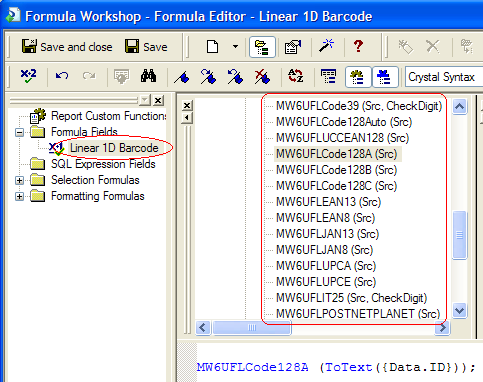
6.Click on the formula field "Linear 1D Barocde" and drag it on the report.
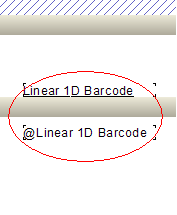
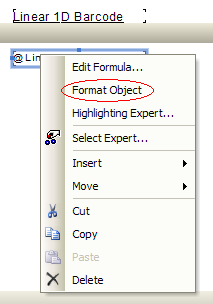
7.Right-click "@Linear 1D Barcode" and choose "Format Object".
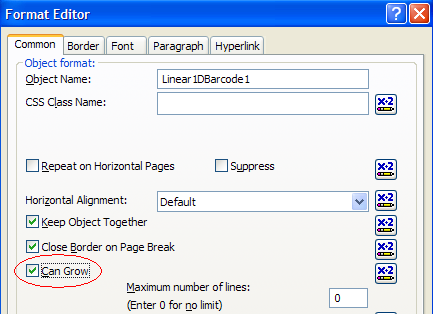
8.Toggle on "Can Grow" check box under "Common" tab.
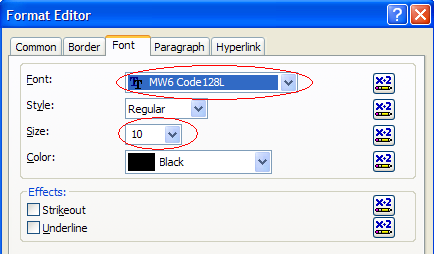
9.Click "Font" tab, choose one corresponding font as the font name. For example, if you wish to create Code128 barcode, choose one of 6 available code128 fonts as the font option, and also you could change the font size to meet your barcode sizing requirements.
10.Run the report.